Reply to customers
Agents can answer a WhatsApp customer in two ways. Both deliver the message to the customer's WhatsApp.
| Public comment | WhatsAppBridge issue panel | |
|---|---|---|
| Where | Activity → Comments of the issue | WhatsAppBridge panel on the issue |
| Available for | All issues in the project | Only issues created from a WhatsApp message |
| View | Regular Jira comments | Chat view with the full conversation |
| Delivery and read status | No | Yes |
| Message templates, voice messages | No | Yes |
The issue panel is available only for requests that were created through WhatsApp. For issues created in any other way (the portal, email, manually) there is no panel, so reply with a public comment.
Public comment
- Open the issue and add a public comment (Reply to customer).
- The plugin sends the text to the customer through the WhatsApp Cloud API.
Internal (private) comments are never sent to WhatsApp.
WhatsAppBridge issue panel
On an issue created from a WhatsApp message, the WhatsAppBridge panel shows the whole conversation with the customer as a chat. You can read and reply without leaving the issue.
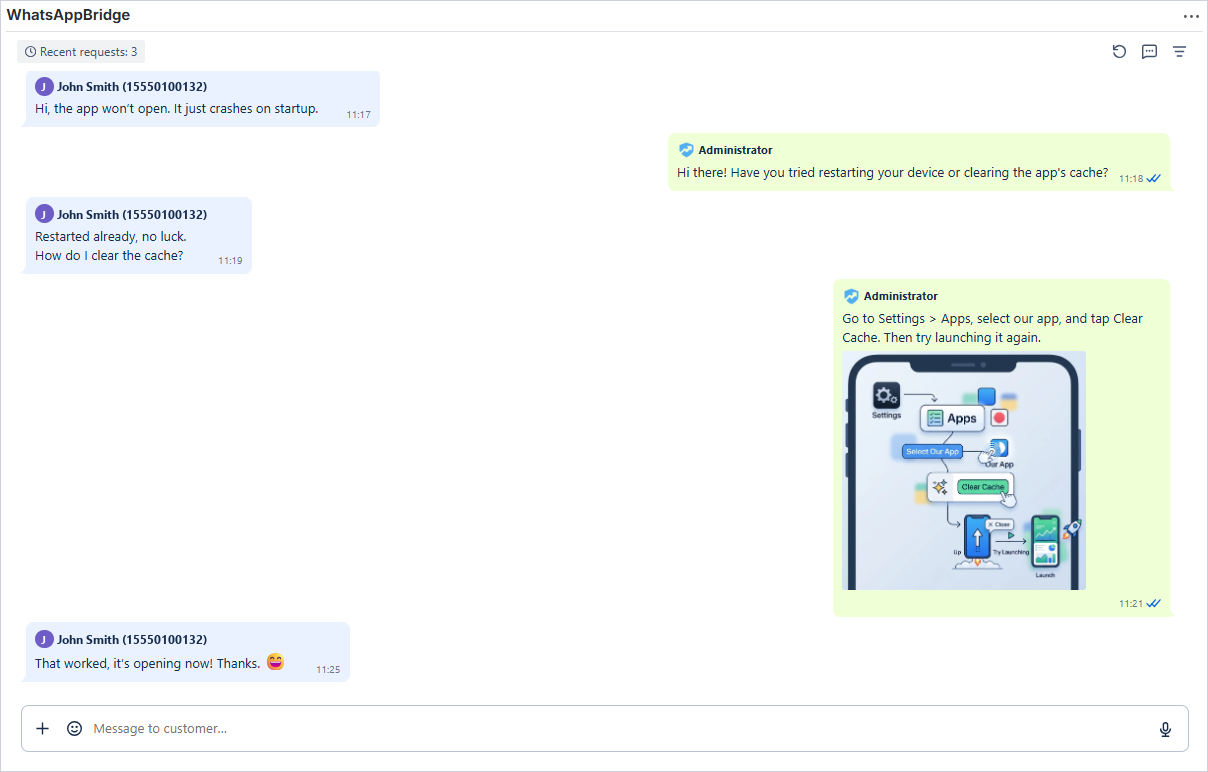
To reply, type the text in the Message to customer field and send it.
What the panel gives you
- Delivery status of each message. Outgoing messages show their status next to the time: sent, delivered and read (the customer opened the message).
- Message templates. Send predefined (approved) templates from the panel. Templates are also the way to write to a customer after the 24-hour window has closed (see the note below).
- Emoji and voice messages. Add emoji with the emoji button and record a voice message with the microphone button.
- The full conversation in one place. Customer messages and agent replies are listed in chronological order, each with the time. You do not need to scan the comments to restore the context.
- Previous requests. The panel shows the customer's recent requests, so you can see what the customer asked before.
- Filters. Use the filters to find the messages you need in a long conversation.
- Who wrote what. Customer messages show the customer name and phone number. Agent replies show the sender name.
- Visual difference between directions. Incoming and outgoing messages have different colors and sides, as in the WhatsApp app.
- Quick navigation. The panel shows date separators and a button to jump to the latest message.
A business can reply with a free-form message only within 24 hours after the customer's last message (the customer service window). After that, WhatsApp requires an approved message template: send it from the issue panel. The customer's answer opens a new 24-hour window.
If a message is not delivered, check the status cards in Connection settings and see Troubleshooting.