Step 5. Go live
The test number and an app in development mode are enough to check the integration. For real customers you need the following.
1. Verify your business
- Open Meta Business Settings → Security center.
- Start Business verification and follow the instructions.
2. Add and verify a real phone number
- In the app dashboard open WhatsApp → API Setup and click Add phone number.
- Enter the business details and the phone number, then confirm it with the SMS or voice code.
- In WhatsAppBridge open Connection settings, click the refresh icon next to Phone number, select the new number and click Save connection.
Details: Add a business phone number.
3. Publish the app
-
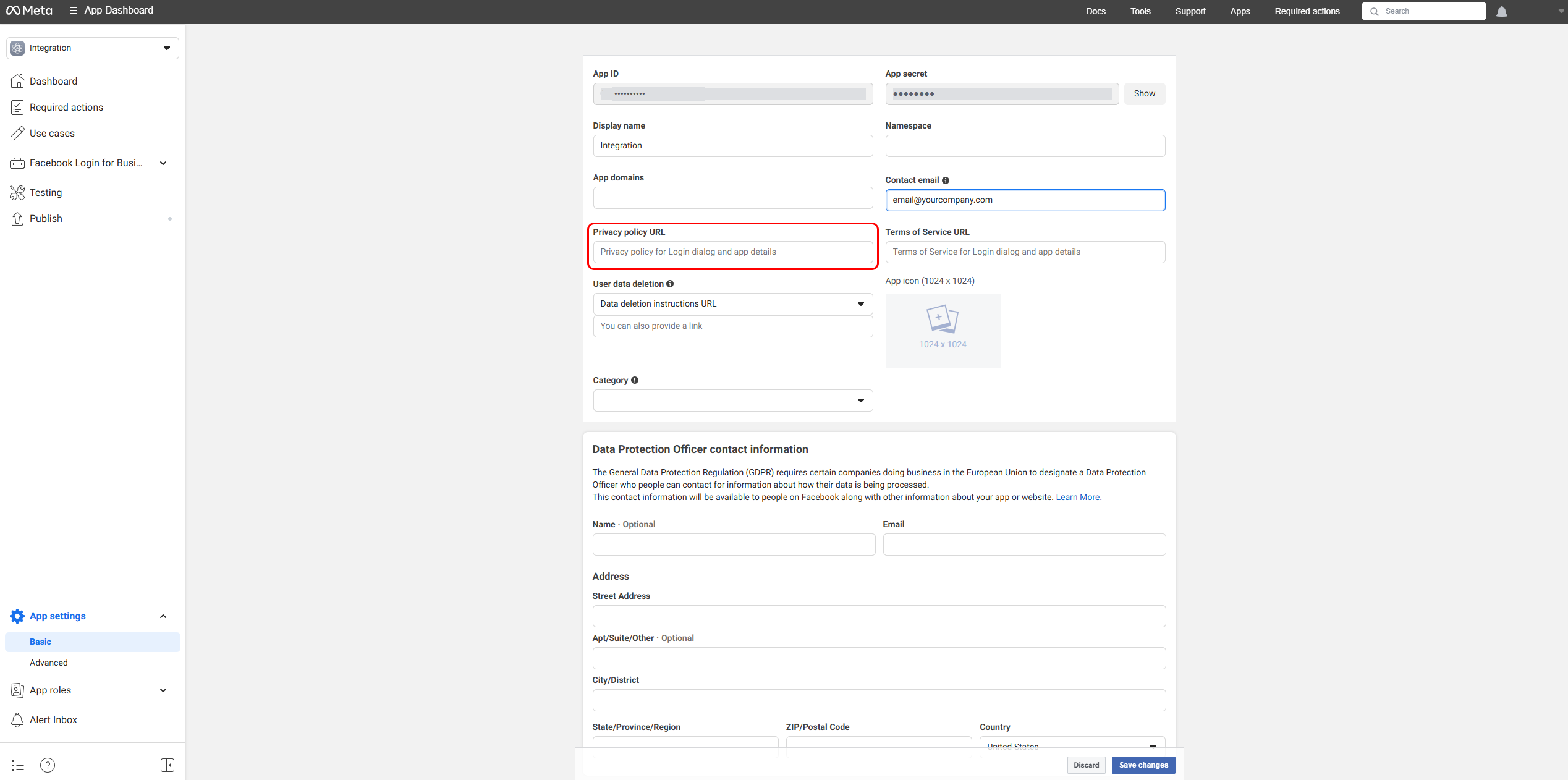
In the Meta App Dashboard open App settings → Basic and add a Privacy Policy URL. Save the changes.
-
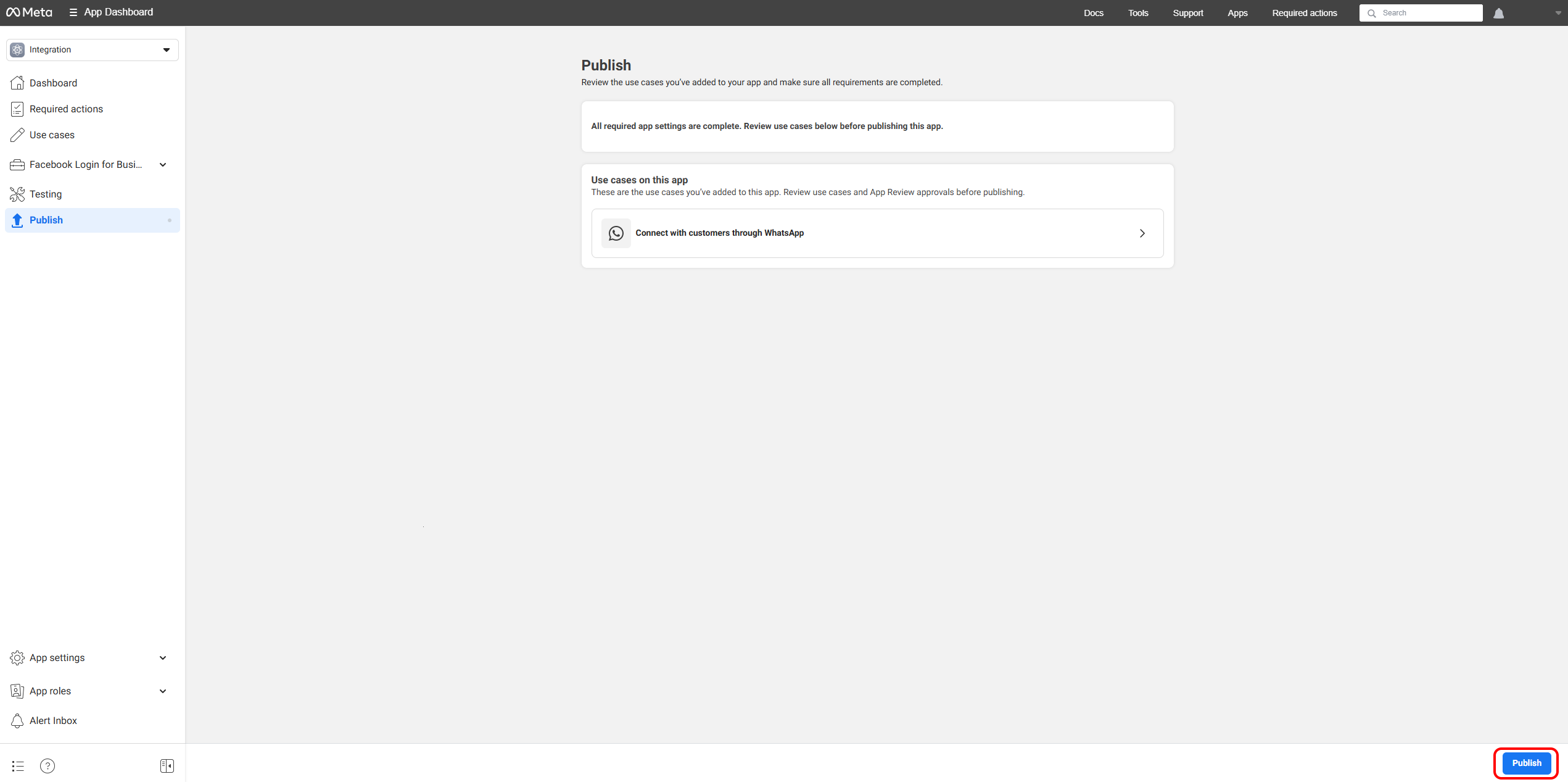
Open Publish and publish the app.
info
The app must be in Live mode to deliver messages from real customers to the webhook.
Production checklist
- Business is verified in Meta
- Real phone number is added and selected in the plugin
- System user token is permanent and stored securely
- Webhook field messages is subscribed
- App is published (Live mode)
- Both status cards in Connection settings are green