How to Set Up WhatsApp Cloud API for Chatbridge Part 2
In the previous article, we configured message receiving. To send messages via WhatsApp Cloud API, you need a WhatsApp API token and a phone number ID.
Generate a Permanent Token
Facebook provides official instructions on how to generate a permanent token. In short:
-
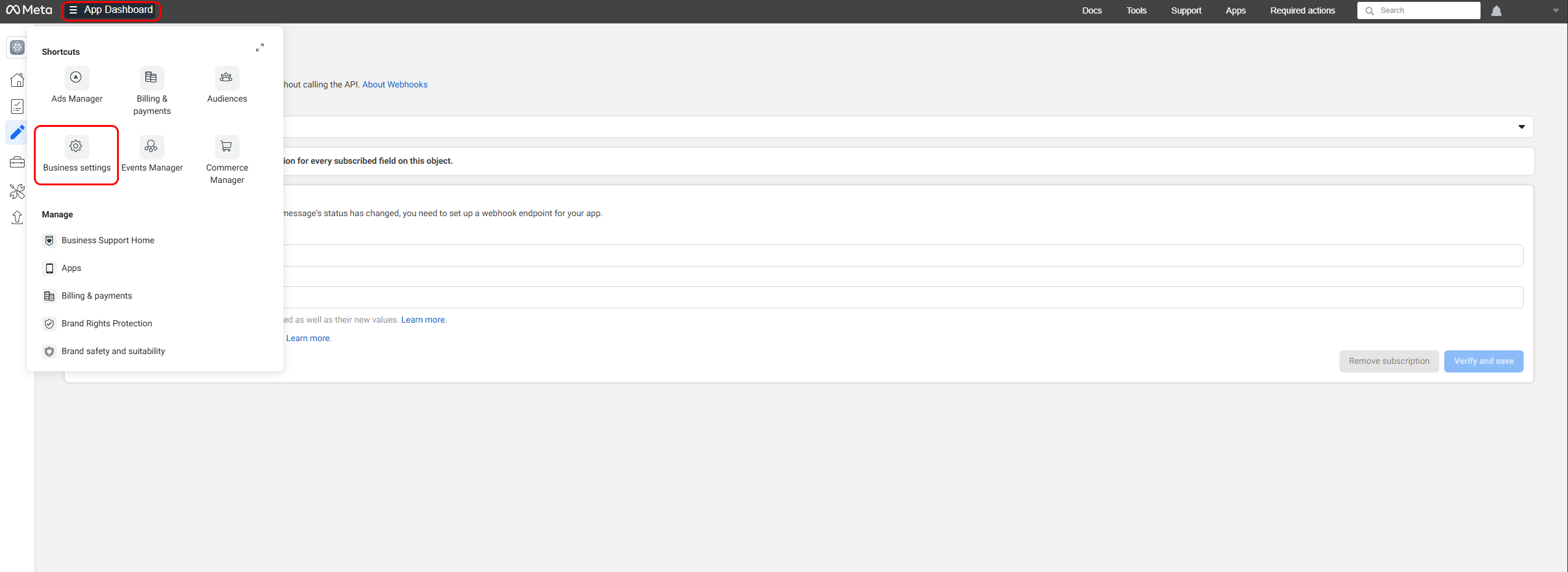
In the app dashboard, click App Dashboard at the top of the page and choose Business settings.
-
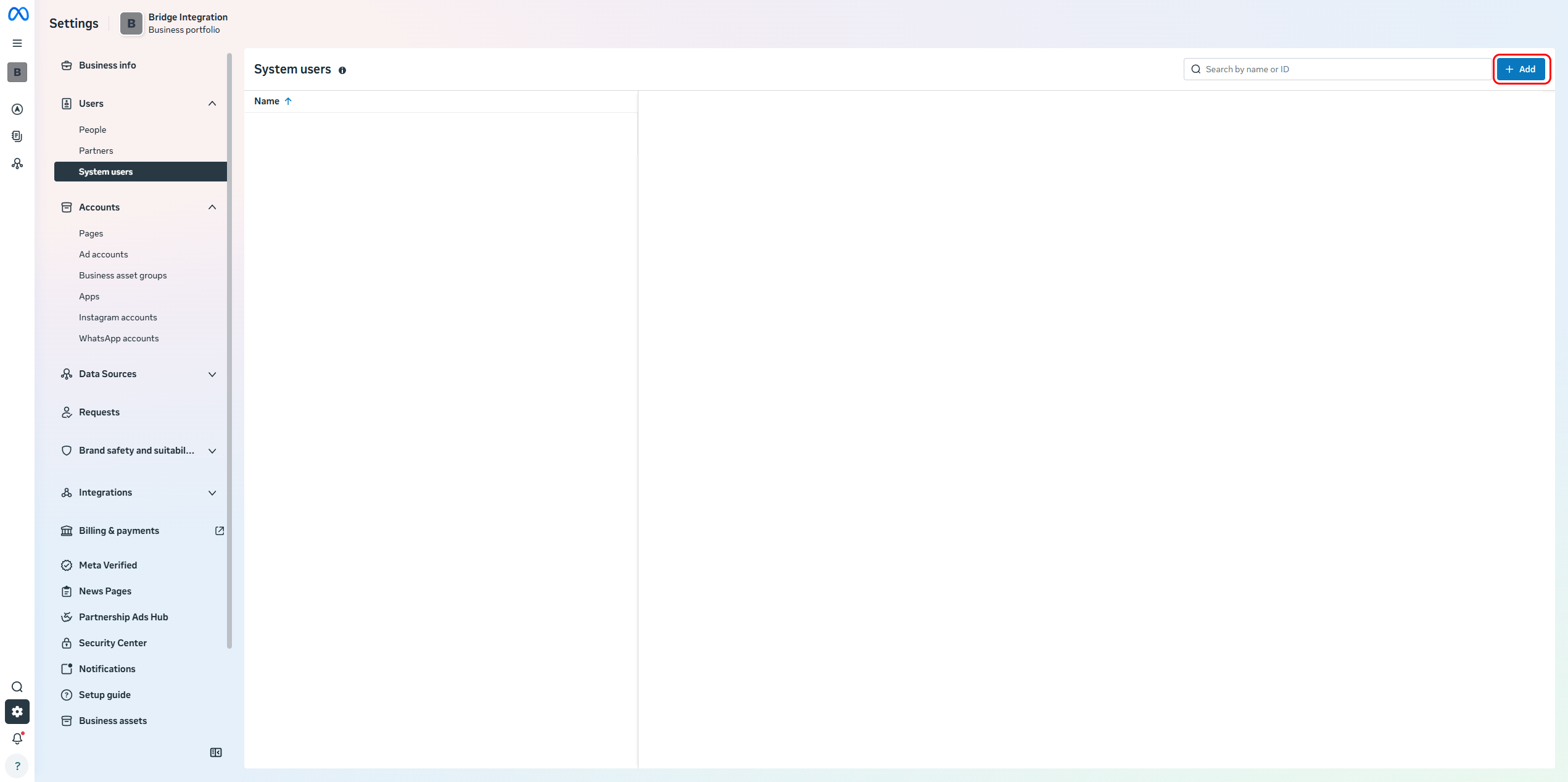
In Users, select System Users, then click Add.
-
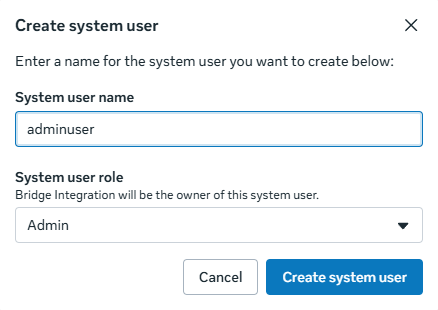
Choose a system user name and role, then click Create system user.
-
Once the system user appears, click their name to display the asset assignment overlay.
-
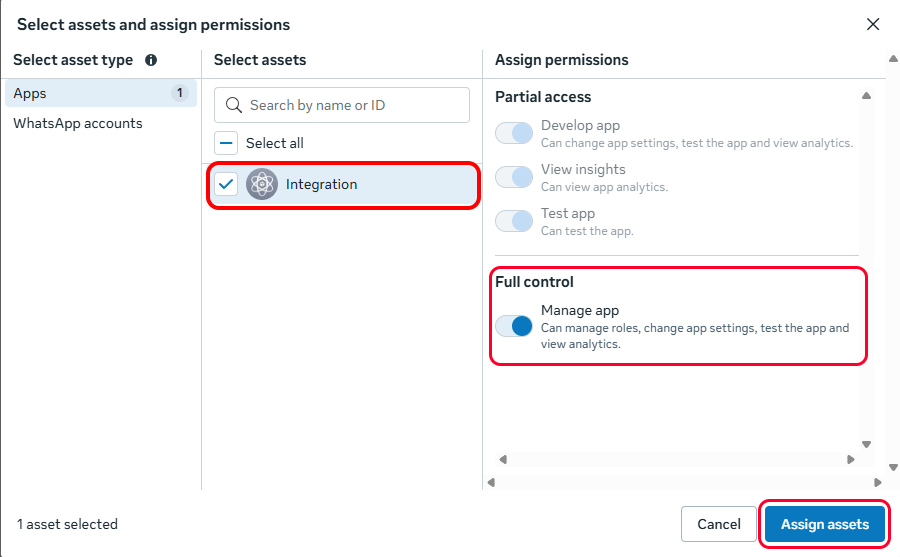
Click Assign assets, select your app, and grant the system user the Manage app permission.
-
Click Generate token.
-
In the token window, select your app, choose a token expiration preference, and assign the following Graph API permissions:
business_managementwhatsapp_business_managementwhatsapp_business_messaging
-
Click Generate token and copy the token when it appears.
-
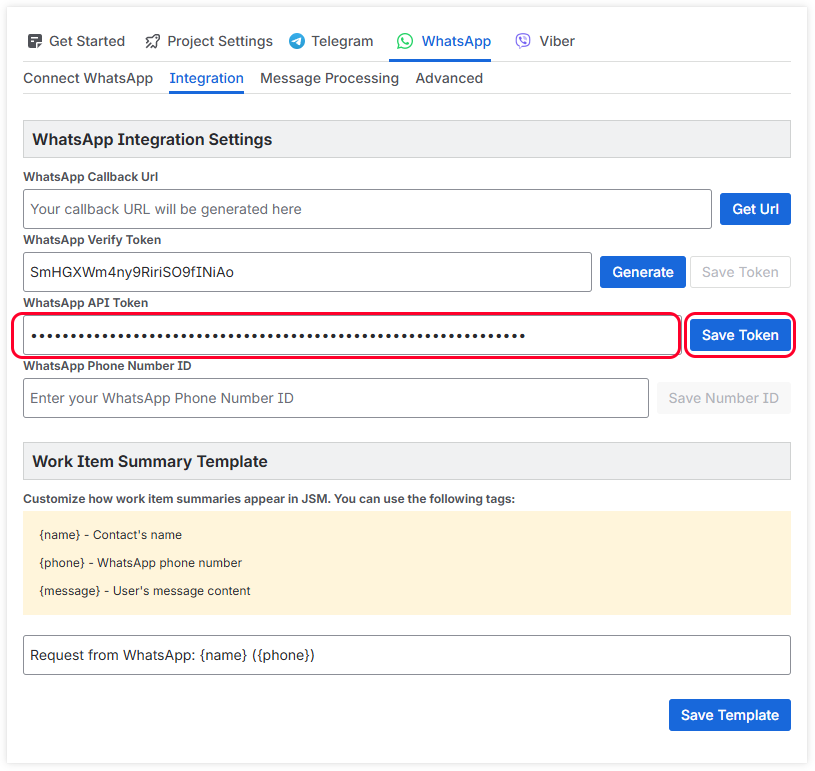
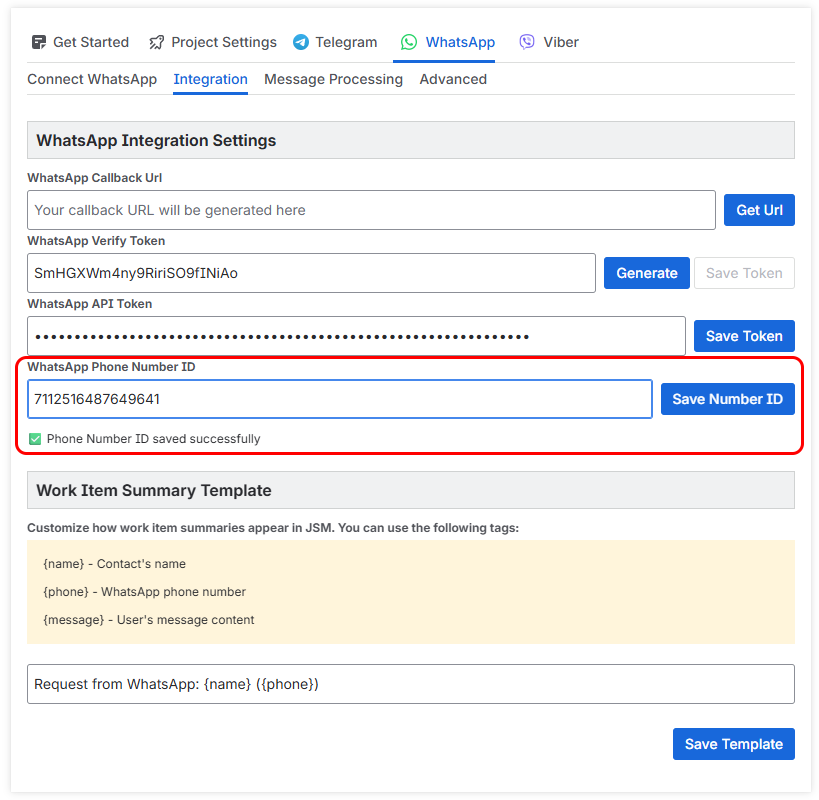
Paste the token into the WhatsApp API Token field on the plugin settings page and save it.
Obtain Phone Number ID
The phone number ID becomes available only after your business is verified and a phone number is added in Meta Business Manager. For testing, you can use the provided test phone number.
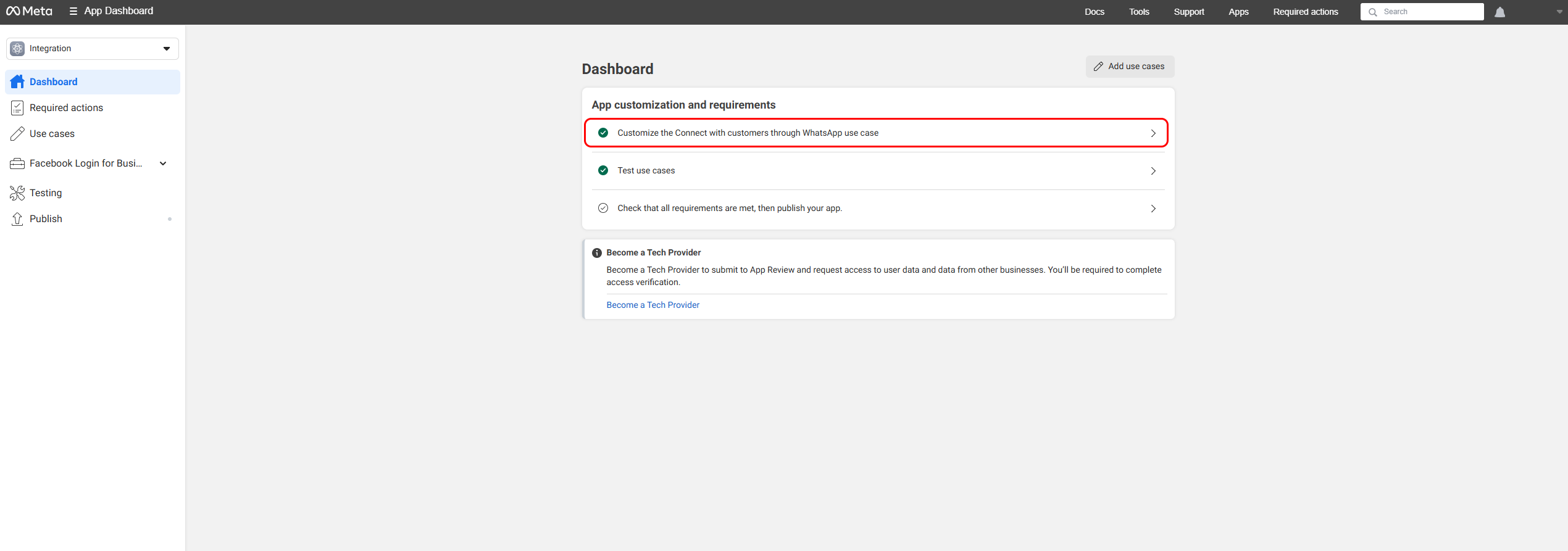
- Go to the Meta Developer Console, open your app, and choose the first option.
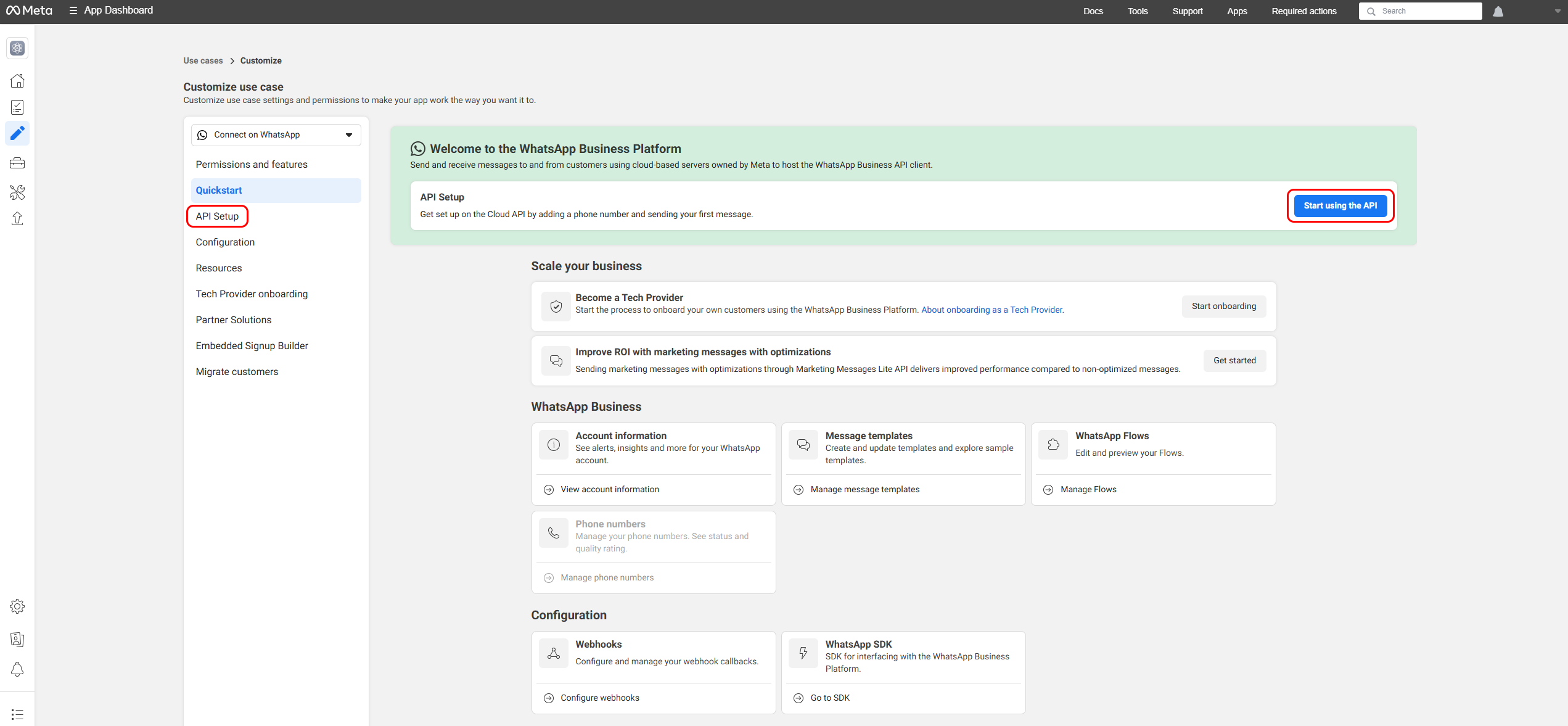
- On the next page, click API Setup.
- On the API Setup page, copy the Phone Number ID.
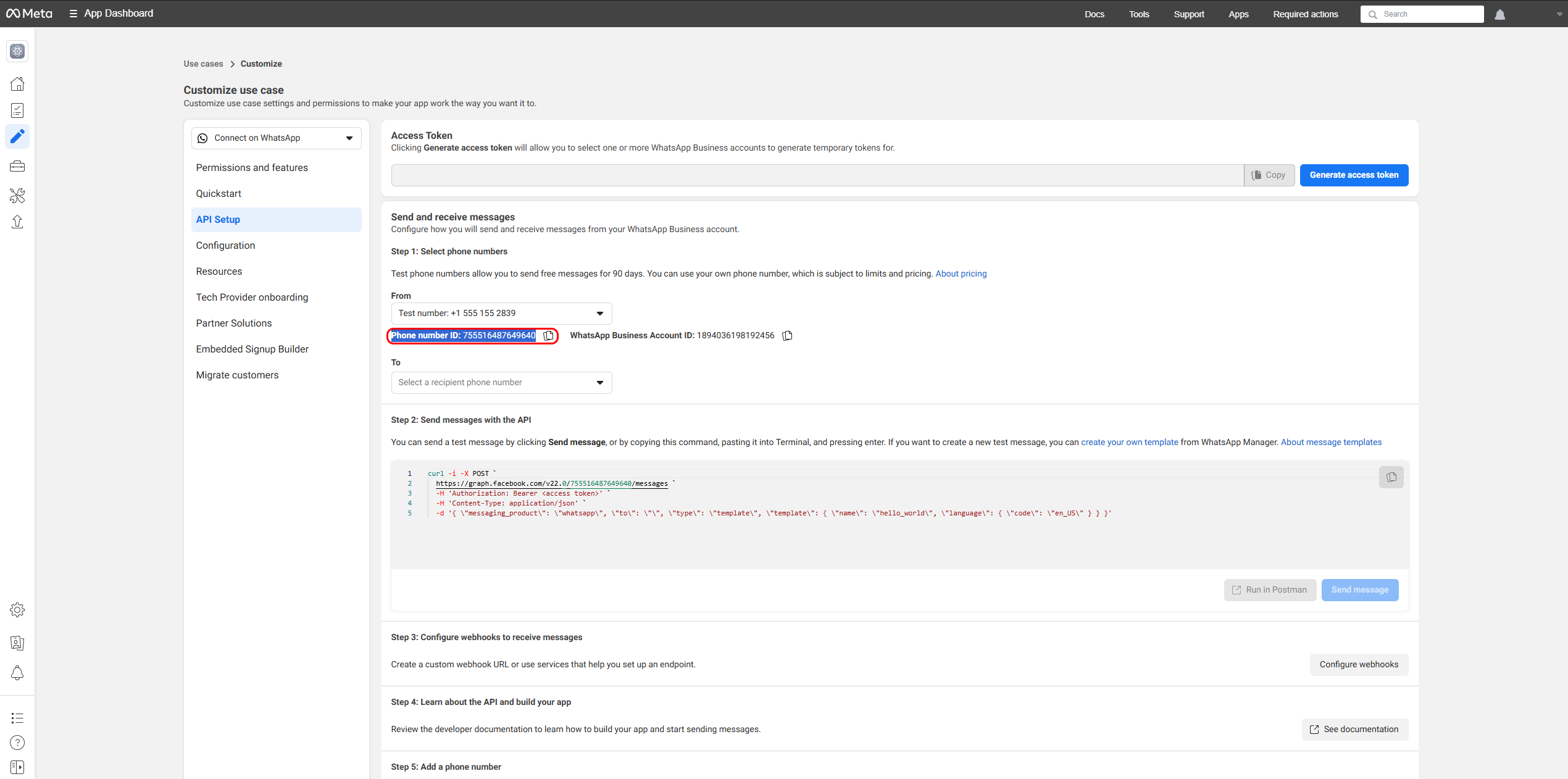
- Paste the Phone Number ID into the corresponding field on the plugin settings page.
Important: To use WhatsApp in production, you must add a phone number and verify your business through Meta Business Manager. The provided test phone number is only suitable for testing and cannot be used in production. Read how to add and verify your phone number in the official Meta docs: https://developers.facebook.com/docs/whatsapp/cloud-api/phone-numbers/
Sending messages via WhatsApp is now configured. Continue to Part 3 for final publishing and go-live steps.
Continue to the next article: How to Set Up WhatsApp Cloud API for Chatbridge Part 3.